

As a web hosting company, Infinity Domain Hosting offers its customers a range of features and options to help them manage and optimize their websites. One such feature is Apache mod_rewrite, a powerful module that enables users to rewrite URLs and control how their website handles requests. In this article, we will explain what Apache mod_rewrite is, how it works, and how to enable or disable it in cPanel.
What is Apache mod_rewrite?
Apache mod_rewrite is a module that allows users to rewrite URLs and modify how their website handles incoming requests. This module uses a series of rules to map incoming requests to specific files or pages on the server and can be used to create clean, user-friendly URLs that are easier to remember and share.
In addition to URL rewriting, Apache mod_rewrite can also be used for a range of other tasks, such as redirecting traffic to a new domain, blocking unwanted traffic or spam bots, and improving the performance of the website by caching pages or compressing files.
How does Apache mod_rewrite work?
Apache mod_rewrite works by intercepting incoming requests and processing them according to a set of rules defined in a configuration file. This configuration file is usually called .htaccess, and it is located in the root directory of the website.
The rules in the .htaccess file are written in a syntax that is specific to Apache mod_rewrite, and they specify how incoming requests should be handled. For example, a rule might tell the server to rewrite a URL to point to a different file or page, or to redirect traffic to a new domain.
Enabling Apache mod_rewrite in cPanel Enabling Apache mod_rewrite in cPanel is a simple process that can be completed in just a few steps. Here's how to do it:
Step 1: Log in to cPanel.
The first step is to log in to cPanel, which is the control panel used to manage your website. To do this, go to your website's URL and add "/cpanel" to the end (e.g., www.example.com/cpanel).
Step 2: Find the "Apache mod_rewrite" option.
Once you're logged in to cPanel, you'll need to find the "Apache mod_rewrite" option. This can usually be found under the "Software" section of the control panel.
Step 3: Enable Apache mod_rewrite
To enable Apache mod_rewrite, simply click on the "Enable" button next to the option. This will turn on the module and allow you to start using it on your website.
Disabling Apache mod_rewrite in cPanel.
Disabling Apache mod_rewrite in cPanel is also a simple process that can be completed in just a few steps. Here's how to do it:
Step 1: Log in to cPanel
The first step is to log in to cPanel, which is the control panel used to manage your website. To do this, go to your website's URL and add "/cpanel" to the end (e.g., www.example.com/cpanel).
Step 2: Find the "Apache mod_rewrite" option
Once you're logged in to cPanel, you'll need to find the "Apache mod_rewrite" option. This can usually be found under the "Software" section of the control panel.
Step 3: Disable Apache mod_rewrite
To disable Apache mod_rewrite, simply click on the "Disable" button next to the option. This will turn off the module and prevent it from being used on your website.
Common issues with Apache mod_rewrite
While Apache mod_rewrite is a powerful tool for managing and optimizing your website, it can also cause issues if not used correctly. Here are some of the most common issues that users may encounter:
-
Syntax errors: Apache mod_rewrite rules must be written in a specific syntax, and any errors or typos in the rules can cause the module to stop working. Common syntax errors include missing brackets, misplaced parentheses, and incorrect flags.
-
Conflicting rules: If multiple rules are defined in the .htaccess file, they may conflict with each other and cause unexpected behavior. It's important to test each rule individually and make sure they don't interfere with each other.
-
Performance issues: While Apache mod_rewrite can improve website performance by caching pages and compressing files, it can also cause performance issues if not configured properly. For example, using too many complex rules or redirecting traffic to a slow server can slow down the website and affect user experience.
Best practices for using Apache mod_rewrite
To ensure that Apache mod_rewrite works correctly and doesn't cause any issues, it's important to follow best practices for using the module. Here are some tips to keep in mind:
-
Test each rule individually: Before adding a new rule to the .htaccess file, test it individually to make sure it works as intended. This will help you identify any syntax errors or conflicts with other rules.
-
Keep it simple: While Apache mod_rewrite can be used for a wide range of tasks, it's best to keep the rules simple and focused on specific tasks. This will make it easier to debug and maintain the rules over time.
-
Use caching and compression wisely: While caching and compression can improve website performance, it's important to use them wisely and monitor their impact on the website. For example, caching too many pages or compressing large files can actually slow down the website and affect user experience.
-
Test the website after making changes: Whenever you make changes to the .htaccess file or enable/disable Apache mod_rewrite, it's important to test the website thoroughly to make sure everything is working as intended.
Examples of Apache mod_rewrite rules
Here are some examples of Apache mod_rewrite rules that can be used to modify URLs and control how the website handles incoming requests:
-
Redirect traffic to a new domain:
RewriteEngine On
RewriteCond %{HTTP_HOST} ^olddomain.com$ [NC]
RewriteRule ^(.*)$ http://newdomain.com/$1 [R=301,L]
This rule redirects all traffic from the olddomain.com to the newdomain.com.
-
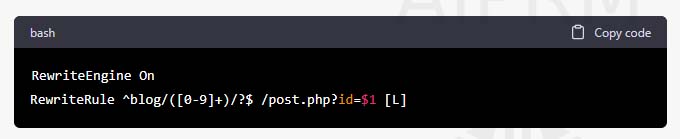
Rewrite a URL:
RewriteEngine On
RewriteRule ^blog/([0-9]+)/?$ /post.php?id=$1 [L]
This rule rewrites the URL for a blog post from /post.php?id=123 to /blog/123.
-
Block unwanted traffic:
RewriteEngine On
RewriteCond %{HTTP_USER_AGENT} ^.*(bot|crawler|spider|mediapartners-google).*$ [NC]
RewriteRule ^.* - [F,L]
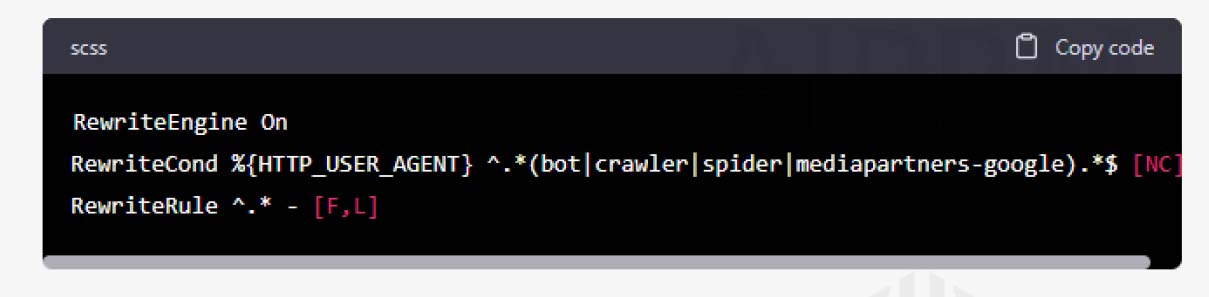
This rule blocks all traffic from bots, crawlers, spiders, and Google AdSense.
Conclusion
Apache mod_rewrite is a powerful module that can be used to manage and optimize websites. By enabling or disabling it in cPanel and using best practices for creating rules, users can control how their website handles incoming requests and improve website performance. However, it's important to test each rule individually and monitor the impact on the website to ensure that Apache mod_rewrite doesn't cause any issues.


